Providing callers with the ability to select a team or function of your business ensures that callers have some control over the call routing.
An IVR (Interactive Voice Response) provides this function and is provided as part of Call Routing. Once setup correctly, it allows the caller to input a number choice using the phone keypad to select one of the available options.
Pre-requisites
Before setting up an IVR in the Portal a few things have to be prepare first;
- Record or purchase an audio file with a recorded message that instruct the caller which options are available, for example "press 1 for the Sales Team, press 2 for the Accounts Team"
- Upload the recording to the Portal
IVR Setup
- Log in to the Portal.
- Go to Flow Designer
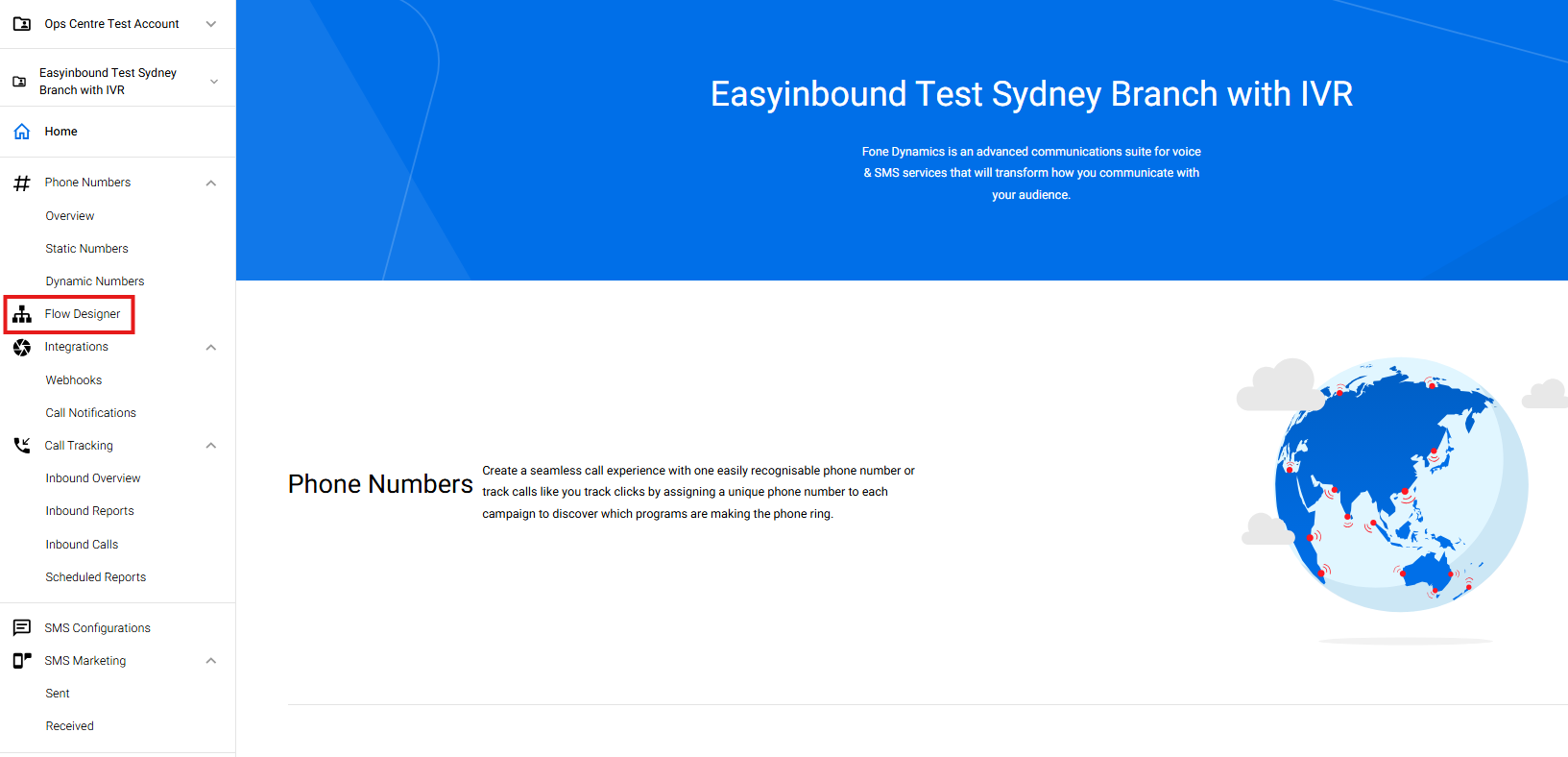
3. Select New Flow
4. Type in your preferred IVR name and select CREATE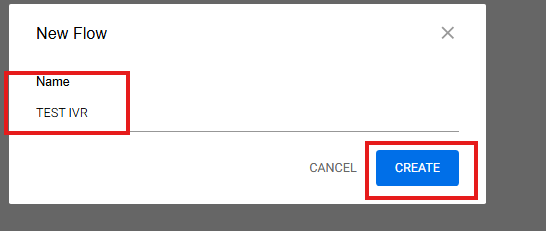
5. You will then be routed to a new page where you build the flow. Drag and drop the MENU node 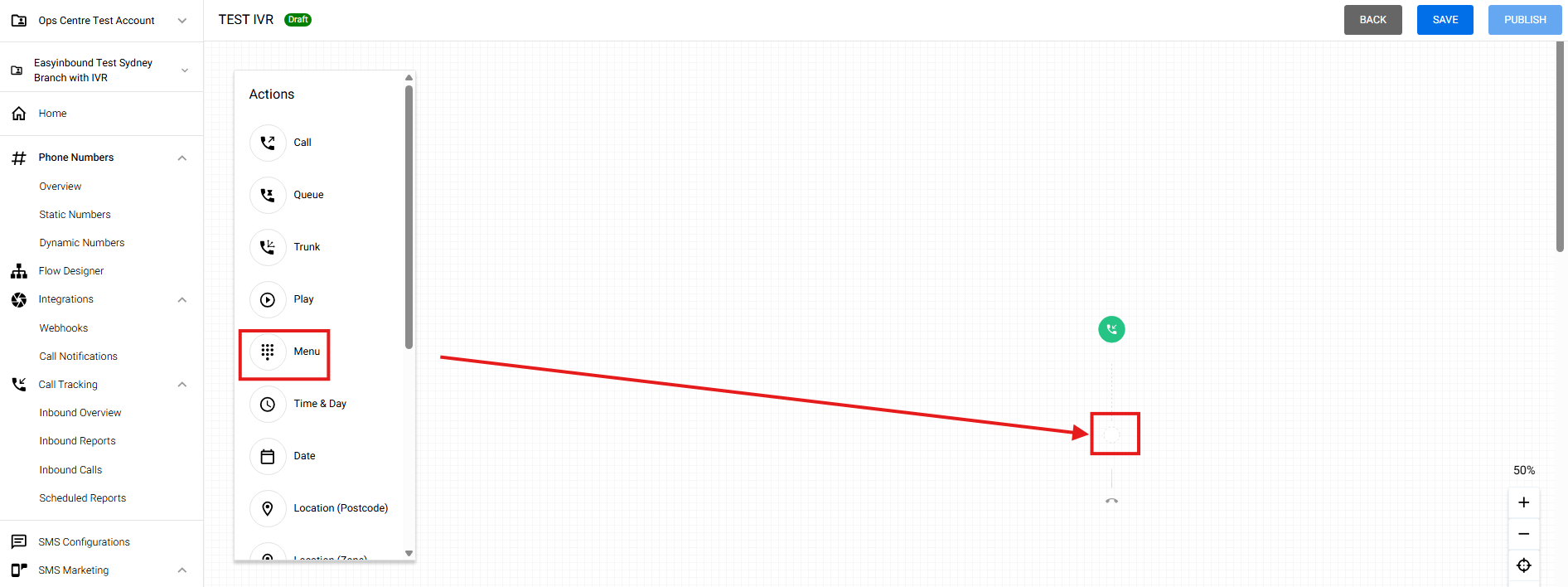
6. Browse your audio file. NOTE: MUST be WAV file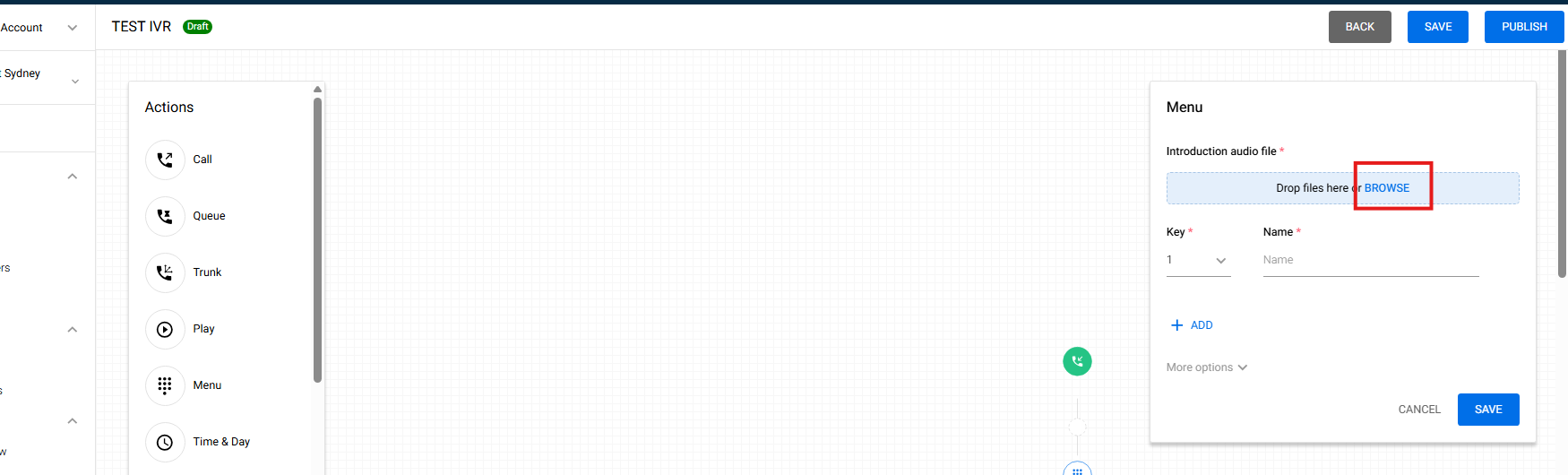
7. Select ADD to add KEYs. Name the keys and hit SAVE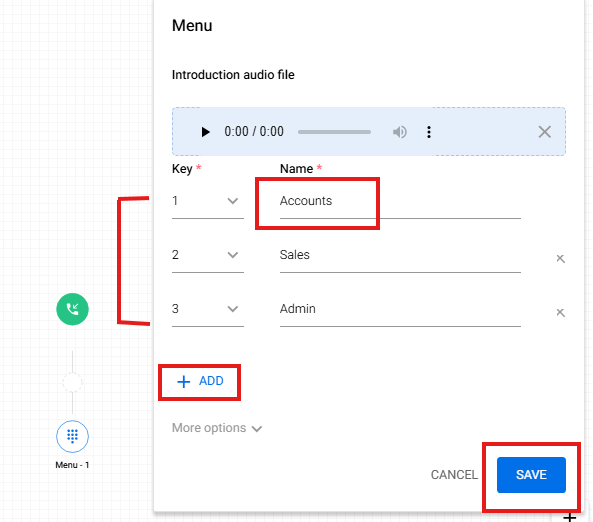
8. Drag and drop the CALL node to add the ANSWERING/TERMINATION POINT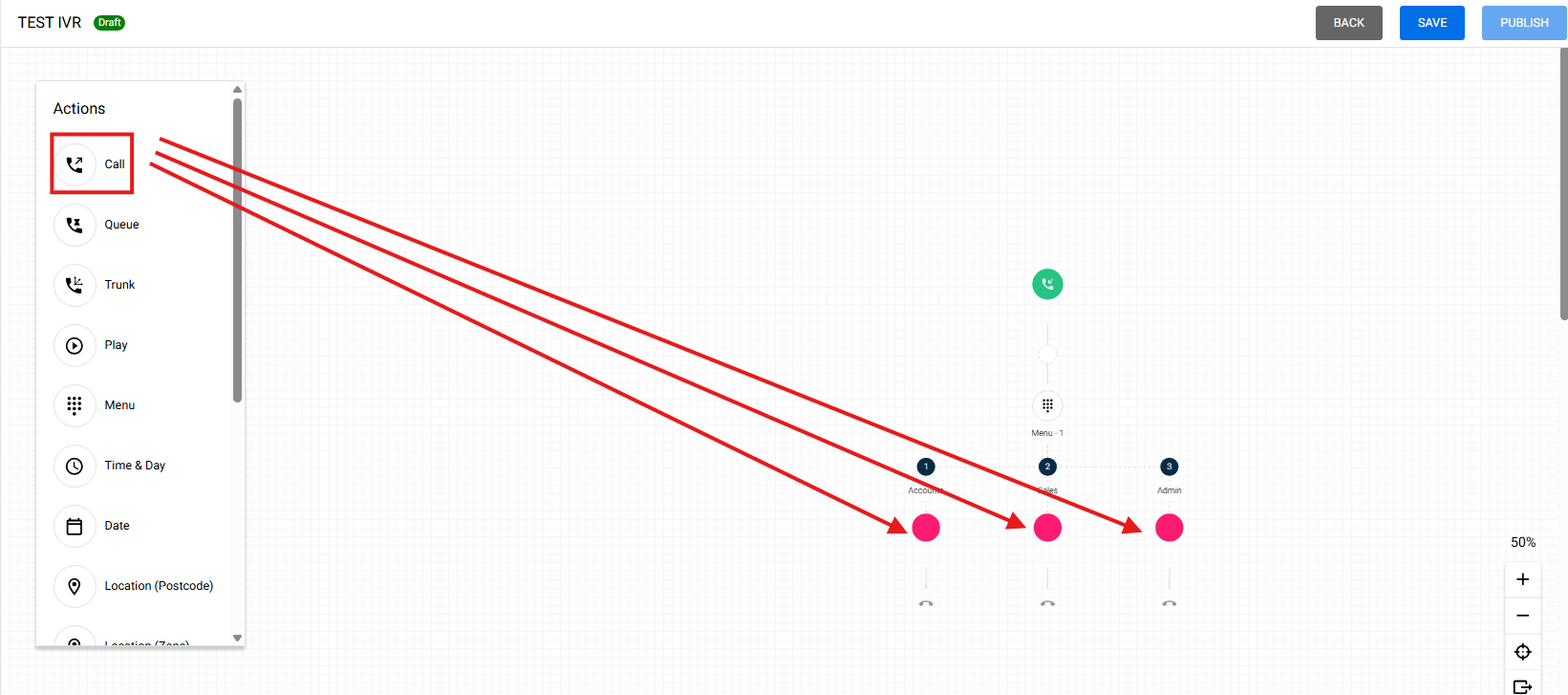
9. Name the call node, add the answering point starting in "+61", and you can name it as well, then hit SAVE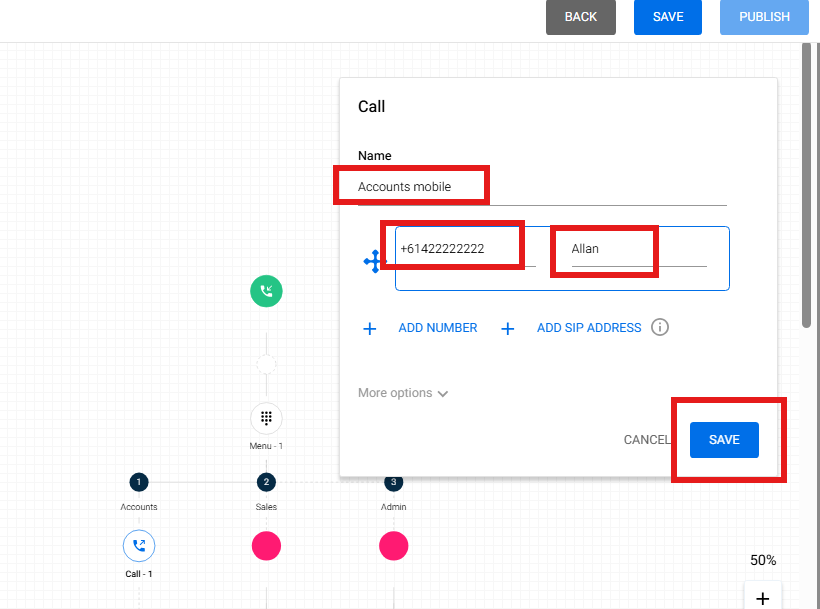
10. Hit SAVE and then hit PUBLISH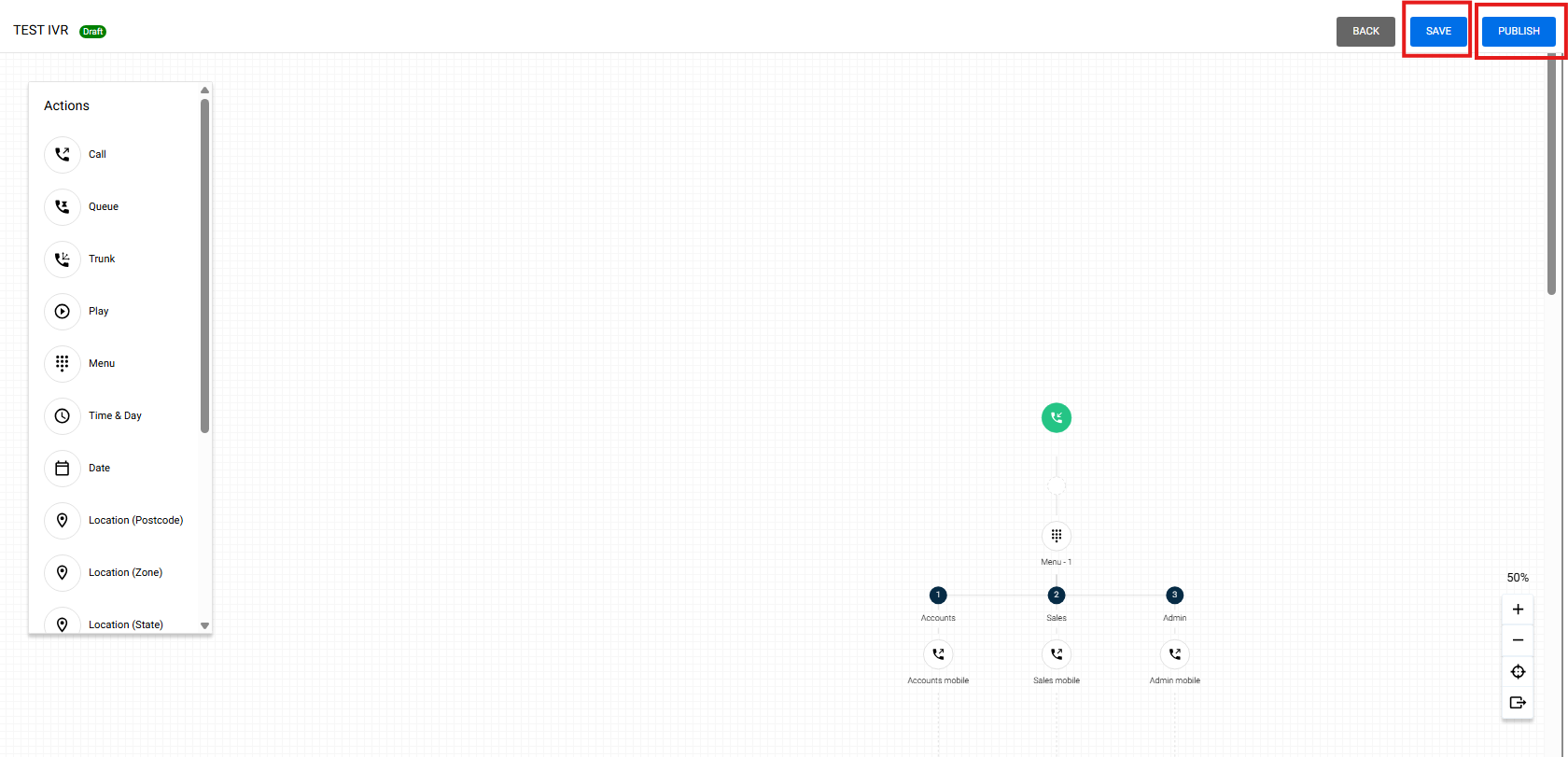
11. Hit another PUBLISH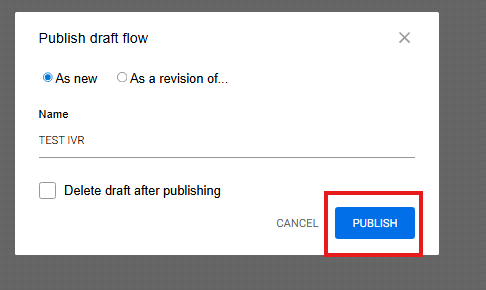
12. Now you have the flow created. To use the flow, go to STATIC NUMBERS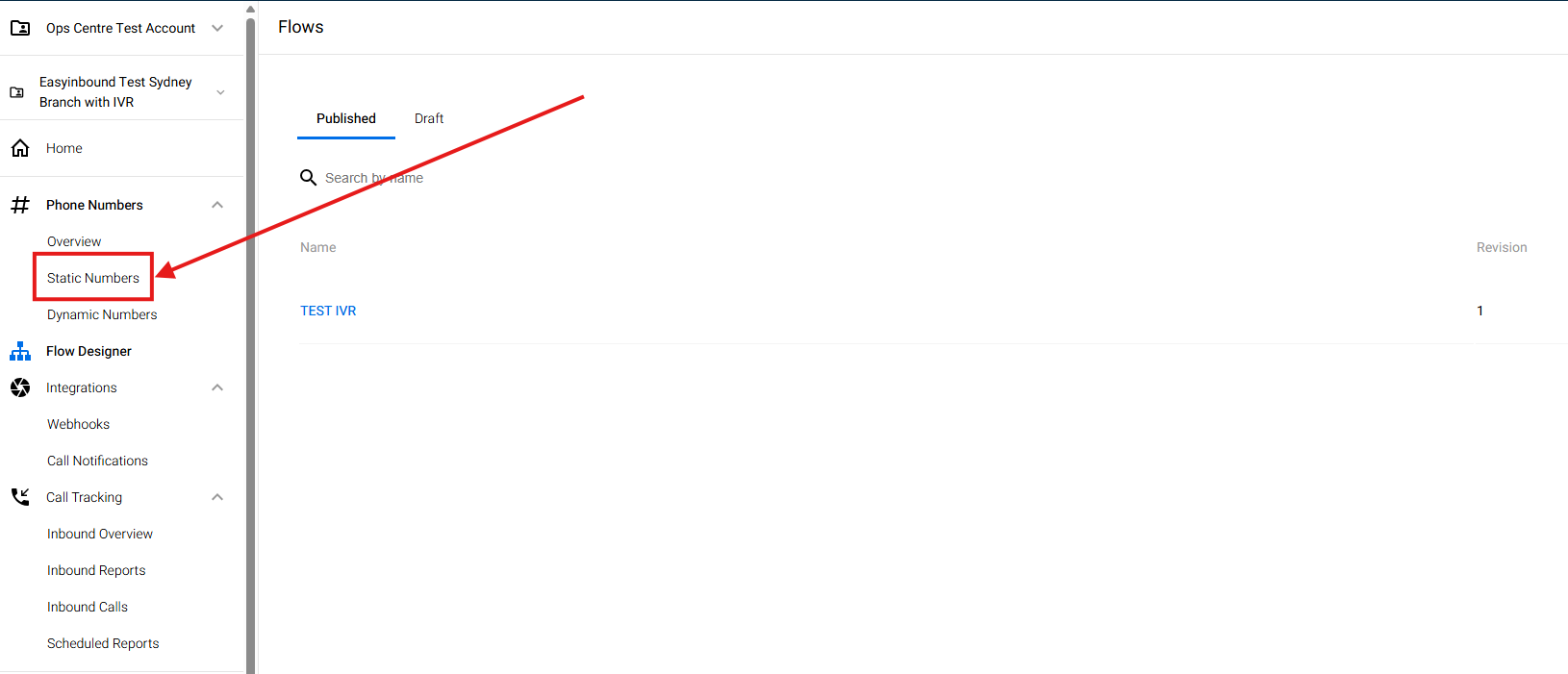
13. Tick the box and select ASSIGN FLOW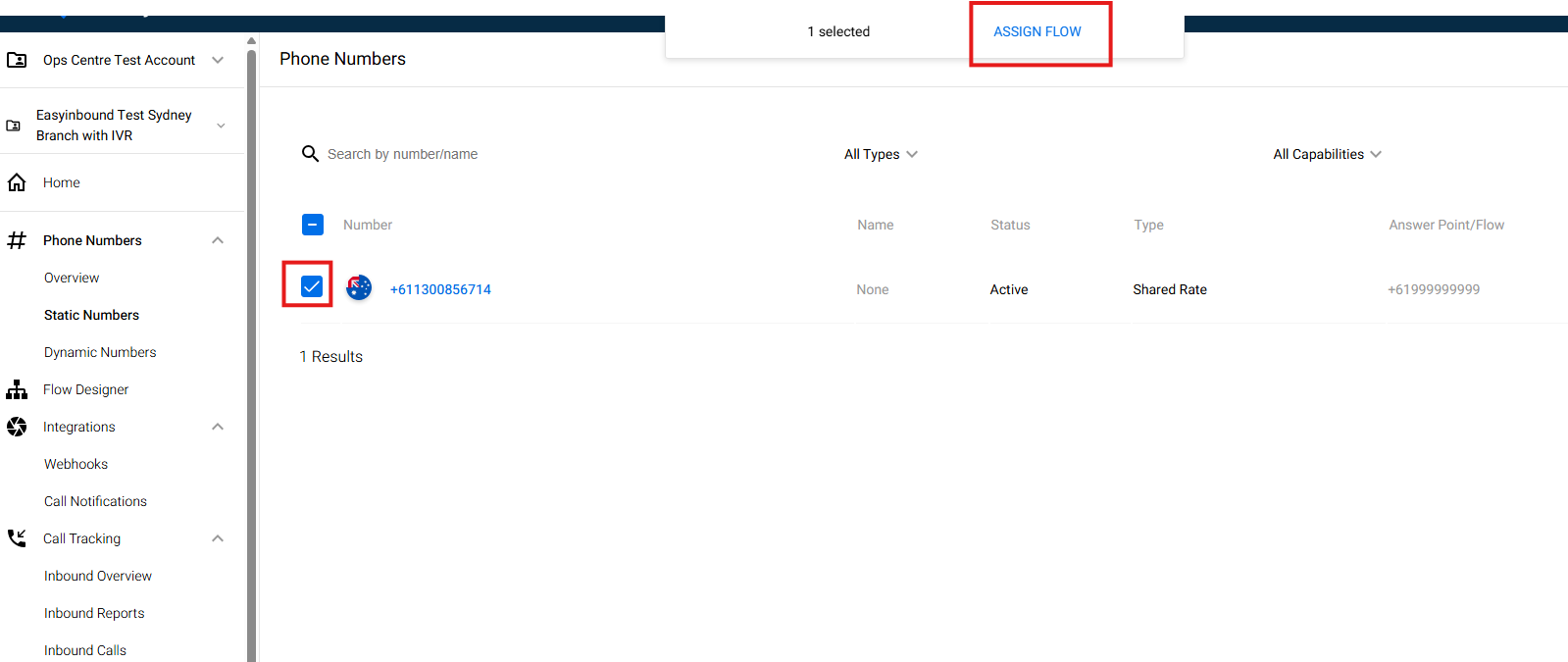
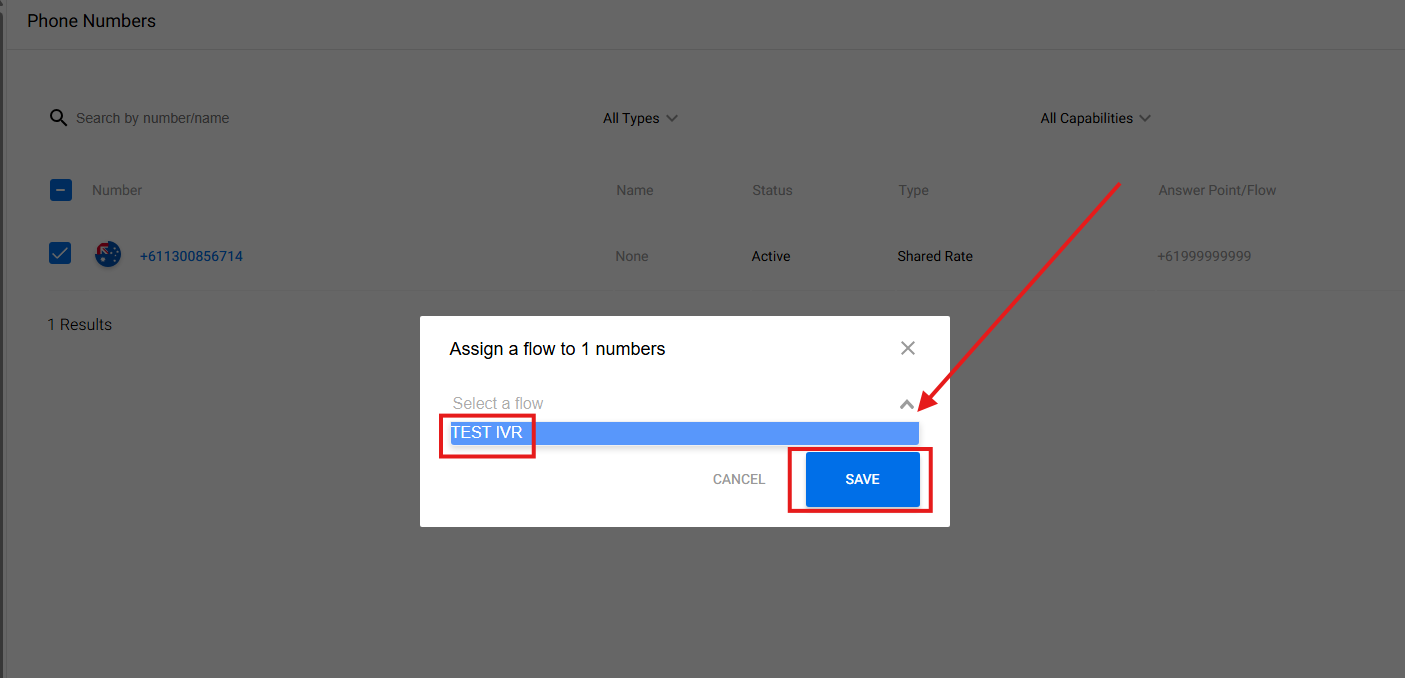
14. Drop down and select the name of the flow design that you created and hit SAVE